Making videos with the AI tab
The AI tab builds and edits your project for you, from plain English. This guide walks through it with real examples: what to type, what the AI does, and what you get back.
Start a new project
New Project on the Projects page asks what you're starting with. Pick one of the two AI starts and the AI builds the whole video for you; or start from a template, or a blank canvas, and build it yourself.
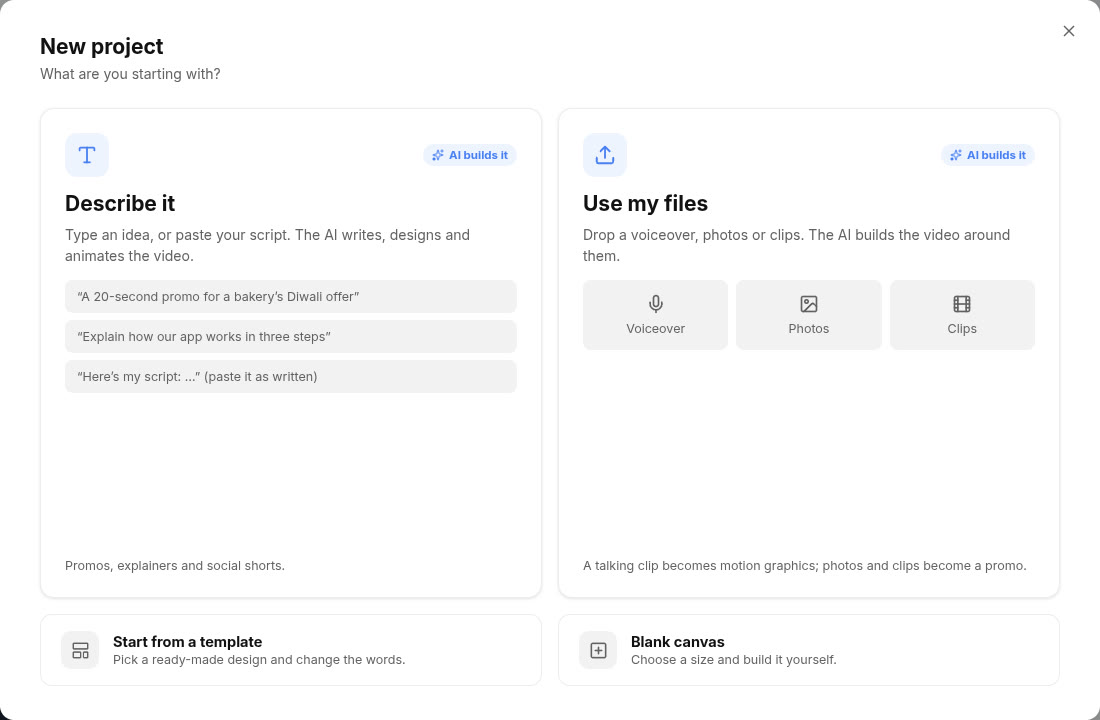
| Start | What you give it | What you get |
|---|---|---|
| Describe it | An idea ("a 20-second promo for a bakery's Diwali offer, end with our phone number"), or your finished script with Use my words exactly ticked. | A motion-graphics video: the AI writes (or keeps) the words, designs and animates it. |
| Use my files | A voiceover or talking clip, photos, video clips, in any mix, and an optional line on what it's for. | A voiceover becomes a motion-graphics video of what's said, with captions (you check the words first: see Make video from audio). Photos and clips become a promo built around them. |
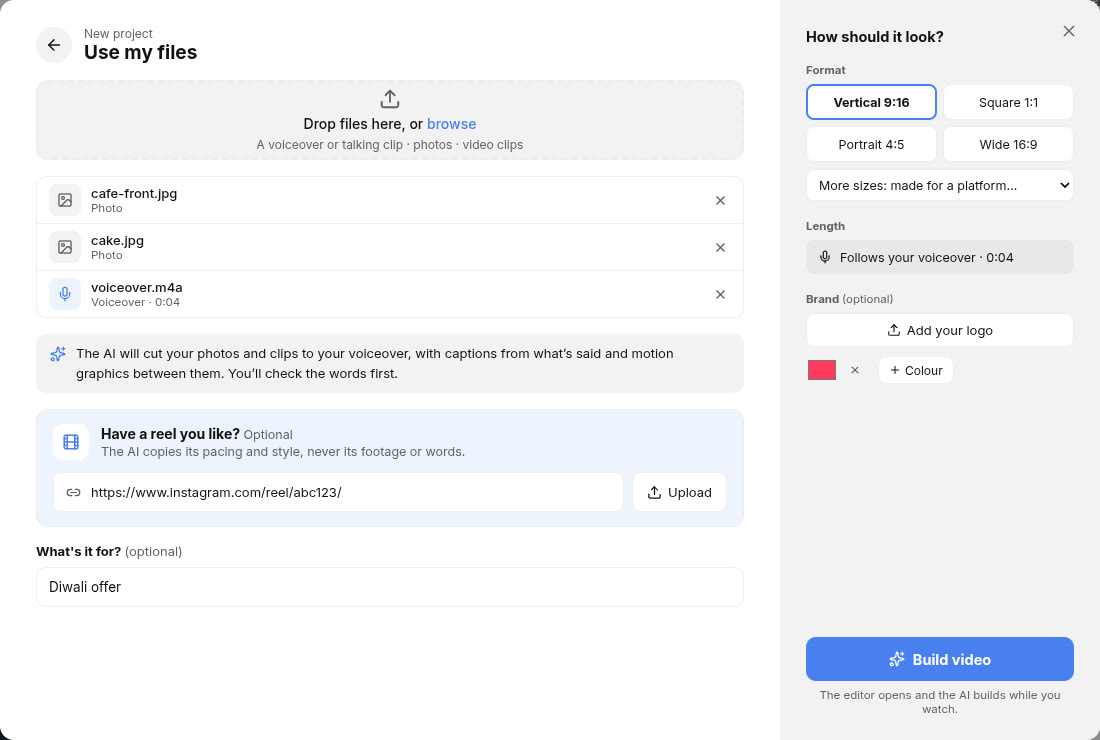
- Have a reel you like? Paste its link or upload it, and the AI copies its pacing and style (never its footage or words). It's attached to the project like a reference video.
- How should it look? The format (vertical, square, portrait, wide, or a platform with its safe area), the length (or Auto), and your brand: a logo and up to three colours.
- Build video makes the project, puts your files in Media and opens the editor with the AI tab building. Your message shows in the chat in your own words. When it's done, ask for changes there as usual.
- A video clip is used as footage. Tick Use what's said on it when it's a talking clip the video should be built from.
How the AI tab works
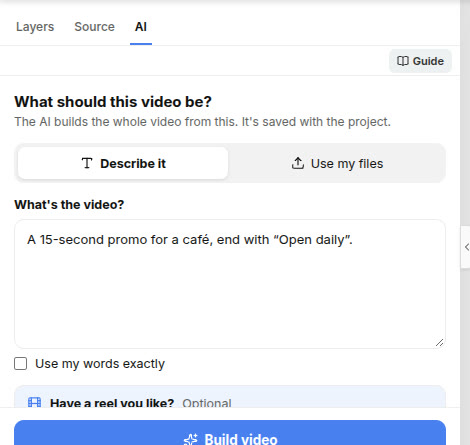
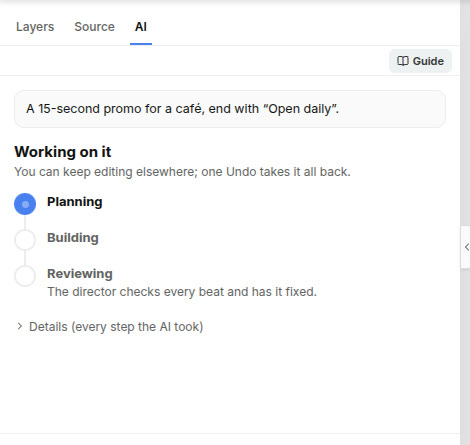
Open any project and click AI in the left panel. The tab follows your video through three screens, so you rarely have to work out what to type. Everything the AI makes is ordinary Motionry content: layers on the timeline, keyframes and animations you can select and adjust by hand afterwards.
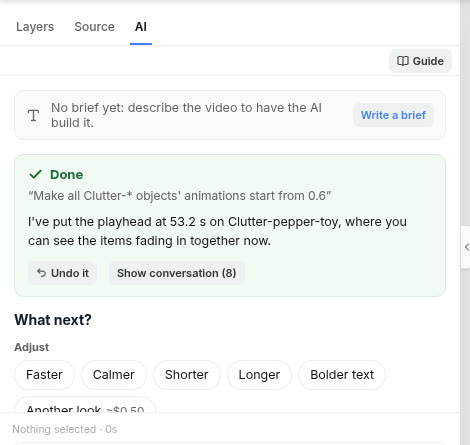
Things worth knowing first
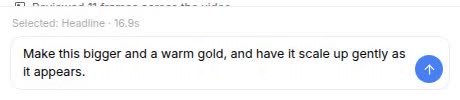
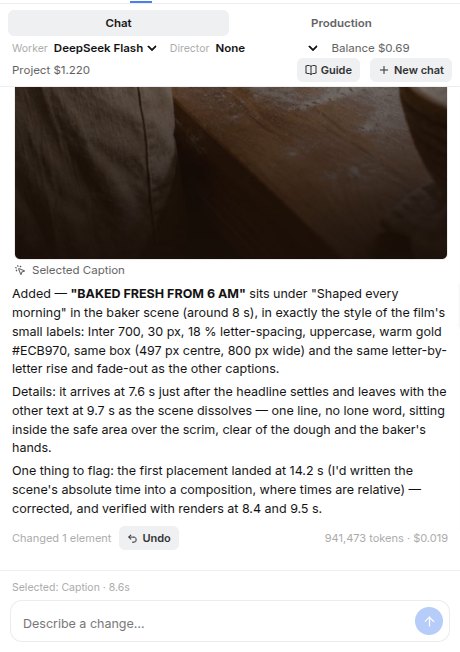
- It sees what you see. Every message is sent with the selected layer and the playhead time, so "make this bigger" and "add a title here" work. The line just above the message box shows what it will be told (for example Title selected · 4.2s).
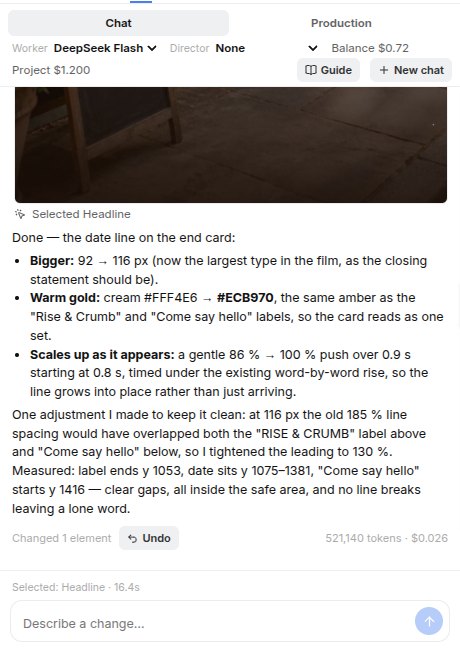
- One reply, one undo. Everything the AI changed in a reply is a single undo step: press Ctrl+Z or the Undo it button under the result. If you don't like a result, undo it and ask differently.
- You can stop it. While it works, Stop is at the bottom of the tab.
- It checks its own work. It renders frames of your video and looks at them, finds text that overflows or covers a face, and fixes what it finds. Those checks are the Reviewing stage.
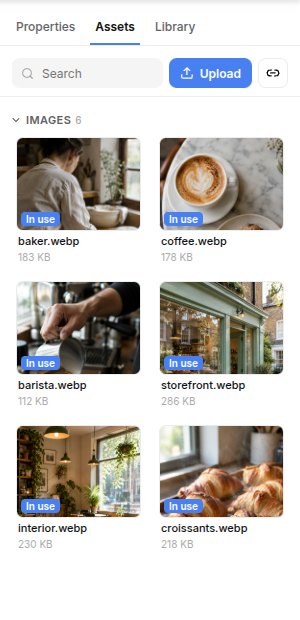
- It uses your media. Upload photos and clips in the Assets tab; when you mention "my photos" it looks at every one of them before choosing and cropping.
- The chat is saved with the project. Reopen the project on any device and the conversation is still there.
- Credits are always in sight. What the project has used so far (its AI work and its exports) and what your workspace has left show in the top bar, next to All changes saved, and change as the AI works, here or in Export.
Who does the work
Every project works the same way, with nothing to pick. A director (Opus 5.5) looks at your media, writes the plan, hands it to the worker (DeepSeek Flash), which makes the edits, and then reviews the result and sends fixes back. Steps marked Director and Worker under a reply show who did what.
A new video with the director usually uses about 5–9 credits to build; a small edit, a fraction of a credit. The top bar shows the project's running total. (Fixing the export sizes from Export uses the worker alone, without a director.)
Example: build a video from your photos
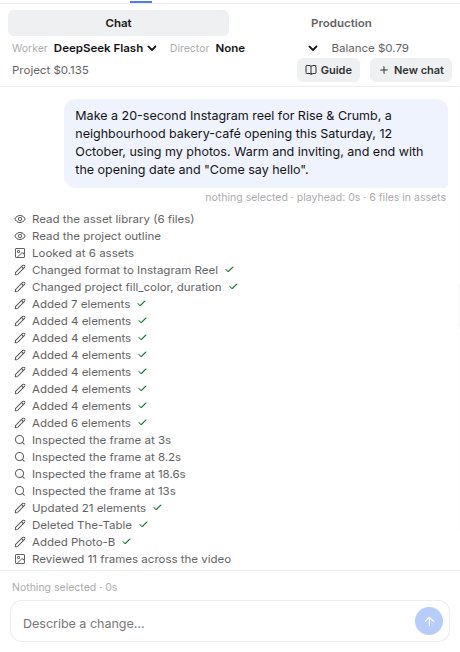
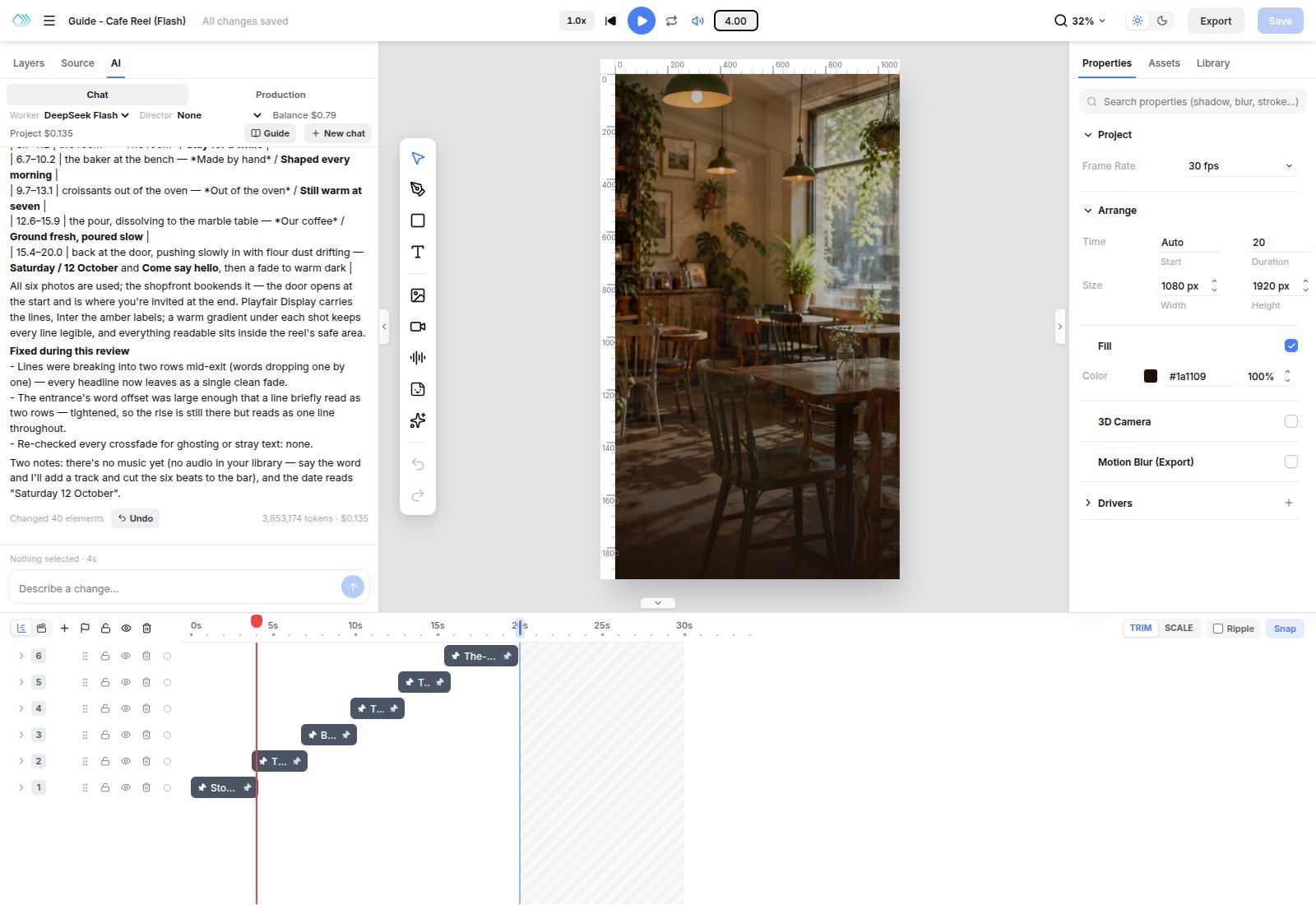
The most common job: you have a client's photos and a short brief, and you need a polished social video. Here we use six photos of a (made-up) bakery-café, uploaded to the project's Assets, on a blank 1080×1920 project.
What the AI does
- Looks before it plans. It lists the assets and views every photo, noting where the subject sits and the colours.
- Writes a plan. The idea, the one hero moment people will remember, the beats with times, the look (fonts, palette, motion) and how each photo is framed.
- Builds it on the timeline, live.
- Reviews it like an editor. It watches the whole video, looks closely at each key moment and fixes what fails its checklist: cut-off faces, unreadable text, a lone word on a line, frozen stretches.
What came back
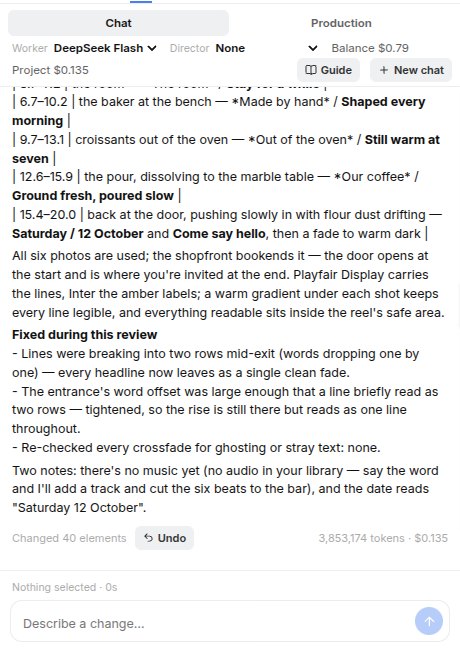
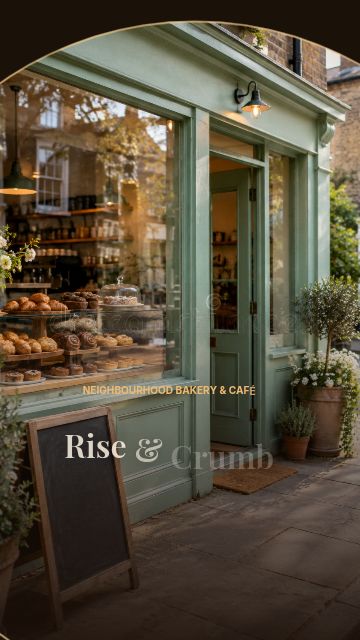



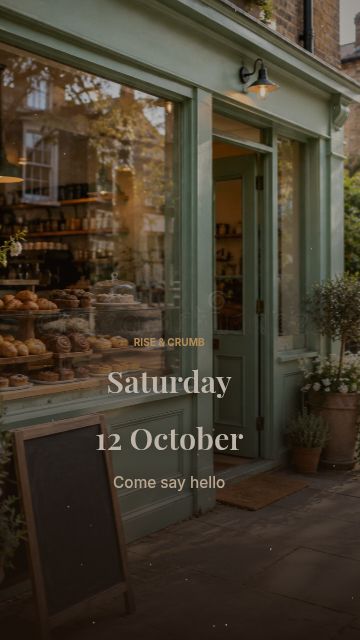
Its idea: the shopfront opens and closes the video. The door is revealed through a growing circle at the start, and the video comes back to it at the end with the date. In between there's one photo per beat, each with a small amber label and a serif line, flour dust drifting, and a slow push-in on every photo.
Example: the same brief with a director
Same photos, same words, but with Opus 5.5 as the director. The director studies the photos and writes a detailed brief; the worker builds it; the director reviews the result (up to two rounds of fixes) and writes the summary you see at the end.
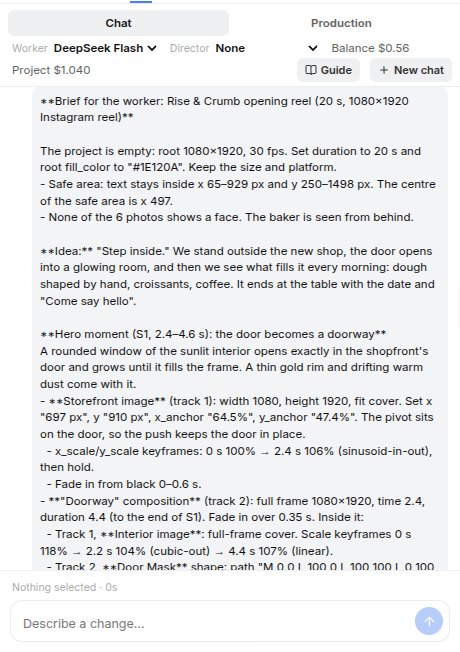
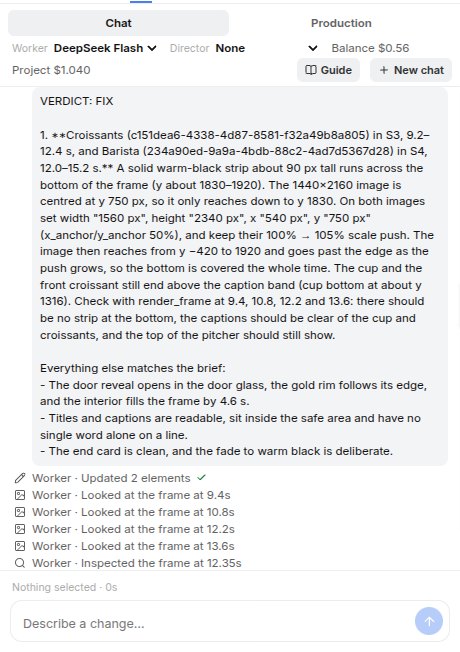





Both are usable. The directed one is more deliberate: a clear title at the start, one idea carried through (the door opening into the room), captions that sit in one consistent place, and a designed end card with a rule and a real hierarchy. That is what you pay the director for.
Small edits
Most of your time with the AI will be small changes to a video that already exists. Select a layer or move the playhead first, then talk about "this" and "here".
With a layer selected
Select the layer in the canvas or in Layers. The line above the message box confirms what the AI will be told.


At the playhead
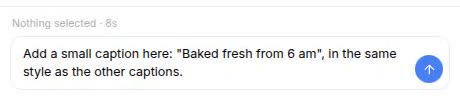
With nothing selected, "here" means the playhead time.

Good small-edit habits
- Batch related changes in one message ("make the date bigger, gold, and have it arrive 1 s earlier"). One message is one undo step and one bill.
- Say what's wrong, not only what to do, when you can: "the title covers her face at 6 s" lets the AI choose the best fix.
- Lock what's finished. Locked layers (the lock icon in Layers) are hands off: the AI can't change or delete them, and will ask you to unlock one if it needs to.
- Fine-tune by hand. For a pixel nudge or a colour pick it's often quicker to use Properties directly.
Review and fix
The AI can check any project, including one you built by hand: it renders frames, measures where every text box sits and reports overlaps, overflow, text outside the safe area and words left alone on a line. Ask it to fix what it finds, or only to report.
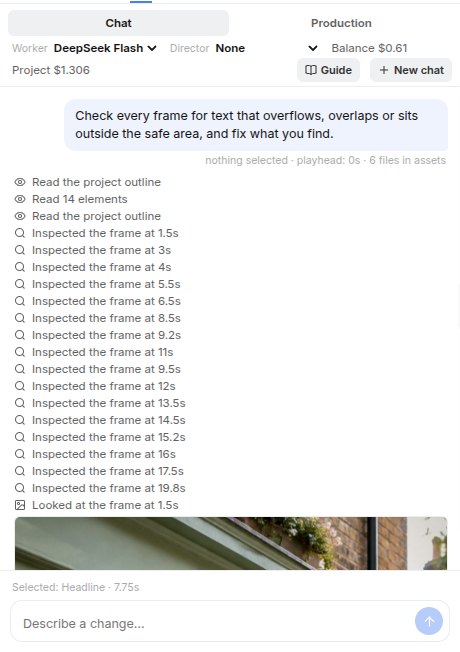
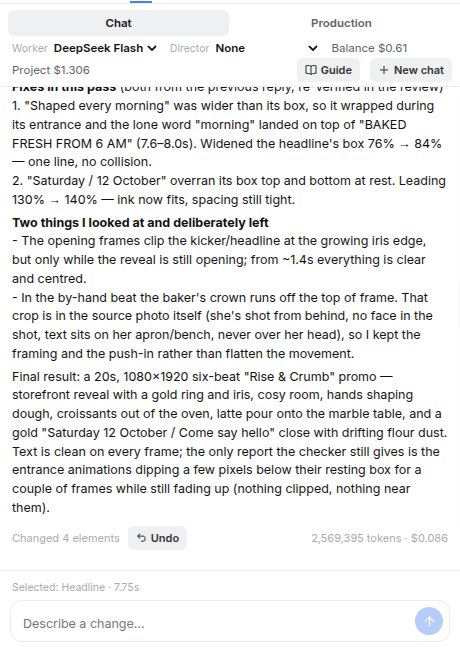
The checklist it works to
- Faces and subjects are fully in frame; no text covers a face.
- Text is readable: big enough, enough contrast (a shadow or scrim over busy photos), inside the safe area, no single word alone on the last line.
- Consistent: the same kind of text looks and moves the same way throughout; at most two fonts.
- Something is always gently moving; nothing sits frozen for more than about 3 s.
- Each line stays up long enough to read (about 0.3 s per word plus a second).
- There is a real hero moment, and the video ends deliberately rather than cutting off.
Use the same list when you check the AI's work, and quote it back: "the date line is only up for one second" is exactly the kind of note it handles well.
Voiceovers and captions
The AI can write a script, read it in a voice from fish.audio's library and caption it word by word. It can also caption a client's own talking-head video or interview. You can do the same without the AI: Add audio > AI Voiceover on the left toolbar (Voiceover on a phone), and the Captions section in an audio or video clip's Properties.
Voices
- Browse by kind and language: male, female, young, middle-aged, elderly, narrator, conversational, social media, ads, storytelling, character, deep, warm, friendly, professional. Play a voice's sample before you pick it. The last voice you used is remembered.
- Keep "Licensed voices only" on for client work. Those are voices fish.audio has licensed for use. The rest of the library is anyone's uploaded voice clone (celebrity copies among them), and you can't be sure it's allowed in a client's ad. The licensed set is small (about 200 voices, mostly English, Japanese, Chinese and Spanish; one Hindi voice and no Urdu yet).
- Delivery cues in square brackets shape how a line is said and aren't spoken or captioned:
[excited],[calm],[whispering],[laughing],[break]for a pause, or plain words like[warm, slower]. - Speed goes from 0.8× to 1.5×. The dialog estimates the length before you make it (about 2.6 words a second).
Captions
- Six styles: Bold Pop (heavy words popping in as they're said), Highlight (the spoken word turns yellow), Karaoke, Boxed, Clean and Subtitle. Changing the style in Properties restyles them and keeps your edits.
- Captions are ordinary text layers in a Captions group above the clip. If a word was misheard, edit its text. They sit inside the platform's safe area, clear of TikTok's and Instagram's buttons.
- The download button in the Captions section saves an .srt file for YouTube uploads or a client handover.
- A file is listened to once. Making captions again, or in another style, costs nothing. A voiceover's captions never need listening: the timing comes with the voice.
What the AI can do with them
- Pick a voice and write the script, with delivery cues and speed, and fit the script to a length ("make it 15 seconds").
- Time the video to the speech: scene cuts at sentence ends, a title or product shot appearing on the word it belongs to ("show the price when I say 'today'"), the video's length fitted to the voiceover.
- Work from what was said in your own clip: start at a phrase, trim the pauses, write a title from it.
- Fix and restyle captions: misheard words, another style, or its own colours, font and position beyond the six styles.
Person effects
On a talking-head clip uploaded to the project, the AI can cut the person out for a moment and put things behind or around them: a big word behind the head, a crossed-out word, a glowing sign, a blurred, darkened, black-and-white or new background, a slow push-in, a sticker outline, shapes orbiting the person, the person breaking out of a frame, and a spotlight. Ask for them on a word and it finds the moment in what's said. You can add the same effects yourself: select the clip, Person Effects in its Properties.
- While you edit, the cut-out is a quick approximation (the canvas says ⚡ Fast Preview). The export uses a much better one. To see that quality before exporting, press Preview export quality on the badge: it uses a little credit, and the export then reuses it.
- Only the effect's own seconds are processed, once. Changing the word, colours or anything else afterwards costs nothing more.
Effects that follow the face
Some effects don't cut the person out; they only need to know where the face is: a quick punch-in zoom on a word, locked on (the camera closes in and brackets snap onto the face), a label or a 3-2-1 countdown over the head, a checklist beside the head that ticks off as each point is said, a card under the chin with a number counting up, a strip of tape across the chest, a hand-drawn pointer, and a selection box that grabs a number and drags it bigger. Ask for them on what's said and the AI fills in the words.
- While you edit, they stay where they were put, at the head. On export the face is tracked and they move with it. Preview export quality on the badge tracks it now (a tiny amount of credit).
- The clip gets one face track layer on the timeline: its length is the part of the clip that's tracked. It draws nothing; deleting it makes the effects stay put.
Reference videos
Got a reel the client loves? Add it in the brief (Have a reel you like?), or press Follow a reel under What next? and paste its link, or pick a video you uploaded to Media. You can also just paste the link into your prompt. The AI studies the reel first: every cut and how long each shot lasts, the beat of the music, what's said, and a sheet of its keyframes. Then it writes a style brief (hook, sections, pacing, text style, colours, motion, transitions, sound) and builds your video to it, with your client's own content. When it reviews its work, it puts its frames next to the reel's and compares the pace section by section.
Read and correct the brief first
- Study on the attached reference breaks the reel down and writes the brief right away (a minute or two), before you ask for anything.
- Brief shows it. If it misread something ("the captions are yellow, not white", "skip the plane"), press Correct the brief, change the text and save. The AI follows your version.
- The reference stays attached to the project, for every message, until you remove it with ×.
- Links: YouTube, Instagram, TikTok, Facebook, X and Vimeo, or a direct link to a video file. Instagram and TikTok often refuse to let the server download. If the AI says so, save the reel on your phone or computer, upload it to Media, and ask again: "follow the reference video in Media".
- The reel goes into Media so you can watch it next to your timeline. It's never put in the video.
- What it copies: the craft (pacing, structure, how text moves, transitions, cuts on the beat) and the look. Your client's brand colours and fonts win over the reel's. It never copies the reel's footage, logos, brand or words.
- A different length or shape is fine. The sections are scaled to fit, and the hook stays in the first 2 seconds.
- Studied once. The brief is saved with the reel, so asking about the same reel again costs nothing and is instant. Reels up to 3 minutes.
Make video from audio
Give it a voiceover, a podcast clip or a talking-head video, and it makes a motion-graphics video of what's said: each point gets its own visual, timed to the words, with captions. News explainers, product promos and tutorials all work the same way. You don't type a prompt.
Where to start
- From Home: New Project › Use my files, and drop the voiceover (add photos or clips too and they become the visuals; see Start a new project).
- On a clip: Make Video from Audio… in an audio or video clip's Captions section, or on its right-click menu.
- In the AI tab: the brief's Use my files, with the voiceover ticked.
- No recording yet? From a script in the dialog opens AI Voiceover. Once the voice is made, the dialog comes back with it.
The two steps
- What's said. The clip is transcribed and shown as text. Read it through and fix any wrong word, name or number: the video is built from exactly these words, and the captions use them. The timing is kept when you edit. Pick the language if it guessed wrong.
- How it looks. Every choice has a default, so Make Video works straight away:
- Captions: a style (shown as a small preview) or none.
- Look: Auto, Dark news, Clean light, Bold colour or Minimal. You can also set an accent colour and a font.
- Visuals: motion graphics only. For a video you can also use your own footage. Photos and clips added in New Project are used as the main visuals.
- Pace: something new on screen about every 4 s (Calm), 2.5 s (Standard) or 1.5 s (Fast).
- Notes for the AI: anything else, such as "our brand is playful" or "don't show flags".
While it builds
- It runs in the AI tab: the director writes a beat sheet (every point said, its time and the visual for it), the worker builds it, and the director checks every beat against the words and has it fixed. Open the plan's Show to read the beat sheet.
- The captions go in first and stay locked until it's done, so they stay exactly as you corrected them. Your clip is locked too. Both are unlocked at the end.
- You can keep working elsewhere in the editor. A notice says when it's ready, and one Undo takes the whole thing back.
- A build stops at its spending limit ($5, more for long audio, shown before you start) and keeps what's made.
The richer features, by asking
Everything the editor can do, the AI can do too, and often faster than finding the right panel. You don't need to know the property names; describe the effect.
| Feature | Ask something like |
|---|---|
| Text effects | "Reveal the headline letter by letter with a typewriter effect" · "make each word pop in on the beat" |
| 3D text | "Make the brand name solid 3D gold letters that turn in from the side" |
| Camera | "Add a slow push-in on the storefront photo" · "turn on the 3D camera and orbit the title" |
| Masks and reveals | "Reveal the second photo through a circle that grows from the cup" |
| Motion paths | "Fly the paper plane along a curve from bottom left to the logo" |
| Text on a path | "Wrap 'Fresh every morning' around the top of the cup" |
| Music and beats | "Cut between the photos on every bar of the music" · "pulse the logo to the beat" |
| Particles | "Add warm floating dust particles over the interior shot" |
| Repeaters | "Stack the word SALE eight times in a kinetic echo" |
| Drivers | "Make the steam wobble gently forever" (no keyframes needed) |
| Format | "Make a 1:1 version for the feed" · "turn this into a 16:9 YouTube intro" |
| Scenes | "Mark the scenes where the story turns" · "split this into real scenes so I can reorder them" |
Versions: more sizes and variants in one export
Clients often buy more than one version of a short: the same promo in 9:16, 1:1 and 16:9, or two or three hooks to test. You make them all in one project and export them together.
Variants
Ask the AI for them: it makes named variants of the text, colours and media (say "Hook B"), and the Original is the project itself. Moving, resizing, timing, animations and new elements belong to the project, so every version shares the layout.
- The strip under the canvas has Original and each variant: pick one to see it. With a variant picked, the text, colours and media you change are that variant's; moving, timing, animations and new elements still change every version.
- Properties says when the selected element is different in the variant, with Reset to take the original's content back.
The AI makes the variants (the original plus two), but never exports: check each one in the strip first.
Other sizes, and the size check
- The same strip has the sizes: 16:9, 9:16, 1:1, 4:5, the project's own first. Pick one to see the project resized to it.
- A while after each edit, the editor checks every size of the variant showing against the project, moment by moment (opening another variant checks that one, with a small progress bar; one already checked shows at once). Each size gets a badge: a red number for problems a client would reject (something off the edge, stretched, texts overlapping, a background not covering, a photo cropped off its subject), an amber one for things worth a look (text much smaller, a label come away from what it names, two texts crossing for just a moment as one moves), a tick when it's clean.
- With a size picked, N problems next to it lists them, each with the element and the moment ("Ordinary-Tuesday-Fragment-2 overlaps Ordinary-Tuesday-Fragment-3 (from 0:27)"). Click one to go there: that size, that moment, the element selected.
- In a narrower size, a scene of characters on a background is cropped like a camera following whoever is talking, so the others are out of the shot for a while. That's on purpose and isn't counted as a problem; select the scene and choose Fit to show all of it instead.
- Fix a size by hand: moving, resizing and hiding there change that size only. A dot on its button shows it's adjusted, and the arrow next to it resets the whole size; Properties has a Reset for one element. Text, timing, animations and new elements still change every size.
- Or click Fix with AI under the list: the AI tab adjusts that size to fix them, checks again, and tells you what's left. Undo it like any AI change if you don't like it.
Exporting them
- In Export, under More versions, tick the sizes (the project's own size and 9:16, 1:1, 4:5, 16:9) and the variants. It shows how many files that makes and roughly how long they take.
- Other sizes are resized automatically (the same as Format), with your adjustments on top (marked "adjusted"). Export shows a tile for each file, each variant in each size, with a picture of it and where it stands: Ready, a number of problems, the AI fixing it, or Needs you. It checks every file (a progress bar) and waits for that. Click a tile to see what the check found and what the AI did. Under the canvas, a size shows only real problems; things merely worth a look are in its tile.
- When a size has problems, the button says Fix and export: the AI fixes that size on its own, for every variant at once, checks it again, then the export starts. It uses credits, like the export itself (Export shows about how many first). You can keep editing meanwhile, and each size's fix is one undo step. Update versions does the same without exporting, so you can look at the versions first.
- The AI's fixes are kept. After you edit the project, Export checks the sizes again for free, and the AI only runs again for a size that has problems now.
- A big production (200 elements or more, counting what's inside its scenes: a story with its cast and their lines) is laid out in other sizes by a person, not the AI: Export says so, holds back the sizes with problems and exports the rest. Fix them by hand, tick them to export anyway, or press Have the AI try (in Export, or in a size's tile).
- A file the AI couldn't fix says Needs you, stays unticked and the export waits for you: open its tile to see the problems, Try again with AI, fix them by hand, or tick it to export it anyway. Still watch each file before you deliver it.
- Each version is its own file with its own download link, named for what it is
(
promo_1x1_hook-b.mp4), so you can send one file to the client at a time. - Freelancers: the drafts render the same way, and Request final asks for all the versions in one request. The admin approves them once.
The Library and templates
The Library tab holds pieces saved for reuse in every project: titles, lower thirds, whole scenes and project templates. The AI can use and add to it.
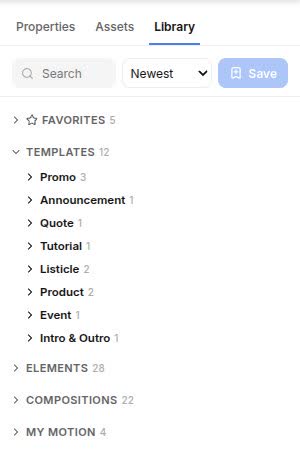
A good Library piece is self-contained and sized in percentages, so it fits any canvas. The AI builds it that way when you ask it to make one, and checks it before saving.
The starter templates are all vertical shorts, 4–16 seconds each. Hooks (Big Text Punch, Question Hook, Stop Scrolling, Number Reveal) are the first seconds of a video: start a project from one and build the rest after it. Logo Reveal and Follow End Card open and close a video. All of them move to 1:1, 4:5 and 16:9 from the size strip.
Writing good prompts
The AI makes sensible choices when you leave things open, and says what it chose. You get closer to what the client wants on the first try if your first message covers:
| What and where | "A 20-second Instagram reel", "a 6-second YouTube bumper", "a 1:1 feed post" |
| Who it's for | The brand, the occasion, the audience |
| The exact words | Names, dates, prices, the call to action, written exactly as they must appear |
| The feel | "Warm and inviting", "punchy and fast", "calm and premium" |
| The media | "Using my photos", "use the logo in the assets" |
| The must-haves | Brand colours (hex if you have them), fonts, the logo at the end |
Then iterate in small steps
- Give feedback like an editor: what, where (the time or the layer), and why.
- Change one thing at a time when something matters; batch when it doesn't.
- If a result is off, undo and rephrase rather than piling fixes on top.
- For a fresh direction, say so plainly ("forget the earlier ideas; start over with …"): the AI reads the project as it is now.
Prompt cookbook
Copy, then change the details. Each works on Flash unless it says otherwise.
Building
Editing
Checking
Voice and captions
Reformatting
Credits
- What uses credits. AI work is 5 credits per $1 it costs us: a build with the director is usually 5–9 credits, a small edit a fraction of one, a 30-second voiceover about 0.1. An export is 0.1 per 15 seconds of video for each file (a still is 0.1); background removal is 0.1 per 10 seconds of footage, and a range already done is reused for free. Editing, saving, previews and the AI's frame checks are free.
- Where you see them. The top bar shows what the project has used and what the workspace has left; each reply shows what it used under it, and the build screen counts as it goes. Build video and Export say about how many credits they'll use before you start. The Console's sidebar shows the workspace's total.
- Your allowance. Every workspace starts on the Free plan with 10 credits: about one AI-built video and its exports, or about 25 minutes of exported video. Paid plans come later.
- When they run short, an export that needs more credits than are left doesn't start (it says how many it needs), and AI work stops once none are left; everything else (editing, saving, opening projects) carries on.
- A workspace runs at most two AI requests at once (two tabs asking together); a third waits until one finishes.
- Long replies keep running on the server, so a slow connection or a phone going to sleep doesn't lose the work.
When things go wrong
| What you see | What to do |
|---|---|
| The result isn't what you meant | Undo (Ctrl+Z) and say it differently, with the exact words, times or layer. |
| It ignores your photos and uses something else | Check the photos are in this project's Assets tab, then say "use my photos". |
| It says a layer is locked | Unlock it in Layers, or tell it to leave that layer alone. |
| The chat has wandered off course | Say "forget what we discussed and look at the project as it is", then ask again. |
| The build is close but not quite there | Ask it to review against the checklist, or to rework the scene that's off. |
| "Today's AI limit is used up" | Wait until midnight or ask an admin to raise it. |